When a major WordPress update drops, website owners usually fall into one of two camps:
- “Upgrade immediately!”
- “Absolutely not until someone else tests it first.”
If WordPress 7.0 has you feeling nervous, you are not alone. Major version upgrades often bring performance improvements, security enhancements, new editor functionality, and modernized code standards — but they can also expose outdated hosting environments, unsupported themes, and abandoned plugins.
The good news is that upgrading safely is completely manageable if you approach it correctly.
Before clicking that update button, here are the most important things you should check.
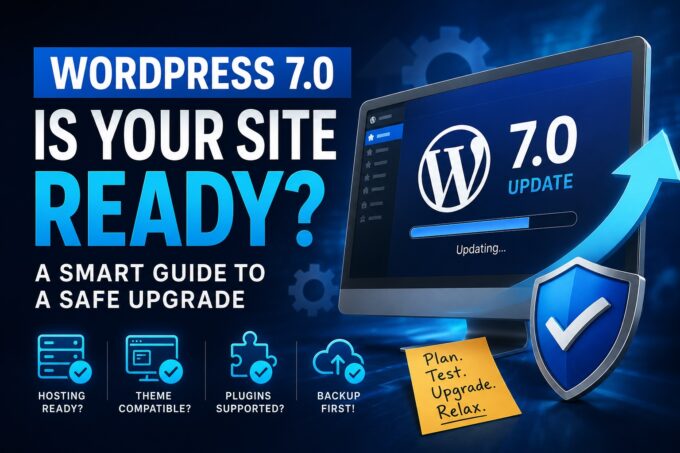
WORDPRESS 7.0 UPGRADE GUIDE: IS YOUR WEBSITE READY?
Is your hosting ready for WordPress 7.0?
Your hosting environment is the foundation of your website. Even if WordPress 7.0 installs successfully, outdated server software can create slow performance, plugin conflicts, random errors, or even complete site crashes.
Minimum Requirements vs Recommended Resources
WordPress typically lists “minimum requirements,” but minimum does not mean optimal.
A modern WordPress 7.0 website should ideally have:
- PHP 8.2 or newer
- MySQL 8+ or MariaDB equivalent
- HTTPS enabled
- Modern caching support
- Adequate memory allocation
- Updated server software (Apache or NGINX)
Many budget hosting providers still run older PHP versions because they prioritize compatibility over performance. That becomes a problem when themes and plugins begin relying on newer PHP features.
Why PHP Version Matters
WordPress 7.0 will almost certainly continue moving toward modern PHP standards. Older PHP versions are slower, less secure, and increasingly unsupported by plugin developers.
If your hosting is still running:
- PHP 7.x
- Outdated MySQL versions
- Low memory limits (128MB or lower)
…you may experience fatal errors or degraded performance after upgrading.
Recommended Server Resources
For small business or professional websites, realistic hosting recommendations are:
- PHP memory limit: 256MB minimum
- SSD or NVMe storage
- Server-level caching
- Automatic backups
- Staging environment support
- Daily malware scanning
Cheap shared hosting often struggles after major WordPress upgrades because newer versions demand more processing efficiency.
If your website already feels slow before upgrading, WordPress 7.0 may simply expose deeper hosting limitations that were already there.
Is your theme compatible?
Your theme controls much more than appearance. It also contains functionality, custom templates, scripts, hooks, and integrations that must remain compatible with both WordPress core and modern PHP versions.
This is where many websites break.
Outdated Themes Are a Major Risk
Themes that haven’t been updated in:
- 6–12 months
- multiple WordPress versions
- recent PHP releases
…should immediately raise concerns.
Older themes often rely on deprecated WordPress functions or outdated PHP code that newer environments no longer support.
Common issues include:
- broken page builders
- white screens
- admin dashboard errors
- styling problems
- mobile responsiveness bugs
- checkout failures on WooCommerce sites
Check These Before Upgrading
Before upgrading to WordPress 7.0:
- Verify the theme developer officially supports WordPress 7.0
- Check compatibility with PHP 8.2+
- Review the theme changelog
- Look for recent maintenance activity
- Confirm bundled plugins are updated too
Many premium themes include heavily customized page builders or proprietary tools. Those integrations often require separate updates that users overlook.
Child Themes Matter Too
Even if your parent theme is updated, custom code inside a child theme may still break.
This is especially true if your developer:
- customized template files
- added old PHP snippets
- modified WooCommerce templates
- used deprecated hooks or filters
Major WordPress upgrades are often when hidden technical debt finally surfaces.
Are your plugins going to continue working?
Plugins are usually the biggest source of upgrade anxiety — and for good reason.
A single outdated plugin can take down an entire website.
Audit Every Plugin
Before upgrading:
- Remove unused plugins
- Replace abandoned plugins
- Check update history
- Read compatibility notes
- Confirm PHP compatibility
Do not assume “it still works” means “it’s safe.”
Some plugins continue functioning visually while silently generating database errors, security vulnerabilities, or performance problems behind the scenes.
Red Flags to Watch For
Be cautious if a plugin:
- hasn’t been updated in over a year
- has poor support reviews
- lacks PHP 8 compatibility
- has no mention of WordPress 7.0 testing
Critical plugins deserve extra attention:
- WooCommerce
- Membership systems
- Booking tools
- SEO plugins
- Backup systems
- Security plugins
- Page builders
These plugins deeply integrate with WordPress core and are most vulnerable during major upgrades.
Test in Staging First
If your host offers a staging environment, use it.
A staging site lets you:
- test upgrades safely
- identify plugin conflicts
- verify checkout functionality
- test forms and user logins
- monitor performance issues
This is one of the safest ways to upgrade without risking downtime on your live website.
The correct order of operations
One of the biggest mistakes website owners make is updating everything randomly.
Order matters.
Step 1: Create a Full Backup
Before touching anything:
- backup files
- backup the database
- verify the backup actually works
A backup that cannot be restored is not a backup.
Step 2: Update Plugins First
Updating plugins first often resolves compatibility gaps before WordPress core changes occur.
Some plugin updates are specifically released to prepare for newer WordPress versions.
Step 3: Update the Theme
Next, update:
- parent theme
- child theme dependencies
- bundled plugins
This helps ensure the visual layer is prepared for the new WordPress environment.
Step 4: Update WordPress Last
Now update WordPress itself.
By this stage:
- plugins are prepared
- themes are prepared
- compatibility risks are significantly lower
Step 5: Recheck Everything
After upgrading:
- test forms
- check mobile layouts
- verify menus
- test ecommerce functionality
- clear cache
- check speed
- update plugins again if needed
Sometimes developers only release newer plugin versions after WordPress upgrades go live.
Trust a professional
There is a difference between a simple update and a production-level website upgrade.
If your website:
- generates revenue
- handles customer data
- runs WooCommerce
- has custom development
- uses many plugins
- has complex integrations
…then professional oversight is often worth the investment.
An experienced WordPress developer can:
- test compatibility safely
- identify hidden risks
- create rollback plans
- optimize server settings
- reduce downtime
- troubleshoot issues quickly
For business websites, one failed update can cost far more than the price of preventative maintenance.
Final Thoughts
WordPress 7.0 will likely bring meaningful improvements in performance, security, and modern development standards. But every major upgrade also widens the gap between well-maintained websites and neglected ones.
The safest upgrade strategy is simple:
- Audit your hosting
- Verify theme compatibility
- Check plugins carefully
- Backup everything
- Upgrade in the proper order
- Test thoroughly
And when in doubt, involve a professional before problems happen — not after your site goes offline.
A careful upgrade today can save hours of emergency repairs tomorrow.
FAQ
Should I upgrade to WordPress 7.0 immediately?
Not necessarily. If your website is business-critical, it is usually smart to wait a short period after release so plugin and theme developers can issue compatibility updates. However, delaying too long can expose your website to security vulnerabilities and performance issues.
What is the safest way to upgrade WordPress?
The safest method is:
- Create a full backup
- Update plugins
- Update your theme
- Update WordPress core last
- Test the website thoroughly afterward
Using a staging environment before updating the live site is highly recommended.
Can upgrading WordPress break my website?
Yes, it can — especially if your website uses outdated plugins, unsupported themes, or old PHP versions. Most upgrade problems are caused by compatibility conflicts rather than WordPress itself.
What PHP version should I use for WordPress 7.0?
Ideally, your hosting should run PHP 8.2 or newer. Older PHP versions may still work temporarily, but they can create security risks, slower performance, and plugin compatibility issues.
How do I know if my theme is compatible with WordPress 7.0?
Check:
- The theme developer’s documentation
- Recent update history
- Compatibility notes
- PHP support information
- WordPress version testing status
If a theme has not been updated recently, it may not be safe to use with the latest WordPress release.
Should I remove unused plugins before upgrading?Absolutely. Unused plugins still increase security risks and may create unnecessary compatibility issues during updates. It is best practice to delete inactive plugins you no longer need.
What should I do if a plugin is no longer maintained?
Replace it before upgrading. Abandoned plugins are one of the most common causes of WordPress security vulnerabilities and update conflicts.
Is shared hosting good enough for WordPress 7.0? Some shared hosting plans are fine, but very cheap hosting environments may struggle with newer WordPress versions. Performance, memory limits, and outdated server software can all become problems after major upgrades.
What is a staging website and why is it important?
A staging website is a private copy of your live site used for testing updates safely. It allows you to identify plugin conflicts, broken layouts, or functionality issues before affecting visitors on your live website.
Do I really need a backup before upgrading?
Yes. Always.
Even a small update can occasionally fail. A full backup ensures you can restore your website quickly if something goes wrong.
Should WooCommerce websites be more cautious with updates? Definitely. Ecommerce websites are more sensitive to plugin conflicts and compatibility problems. Always test:
- checkout functionality
- payment gateways
- customer accounts
- shipping tools
- email notifications
before and after upgrading.
Can I roll back to a previous WordPress version if something breaks?
Yes, but only if you have a proper backup or rollback solution prepared beforehand. This is why backups are critical before major updates.
How often should I update WordPress, plugins, and themes?
Security and maintenance updates should be applied regularly. Major updates like WordPress 7.0 should be approached carefully, tested properly, and planned rather than ignored indefinitely.
When should I hire a professional for WordPress upgrades?
You should strongly consider professional help if your website:
- generates revenue
- stores customer data
- uses WooCommerce
- has custom development
- runs many plugins
- supports memberships or bookings
A professional can minimize downtime and safely troubleshoot issues if problems arise.