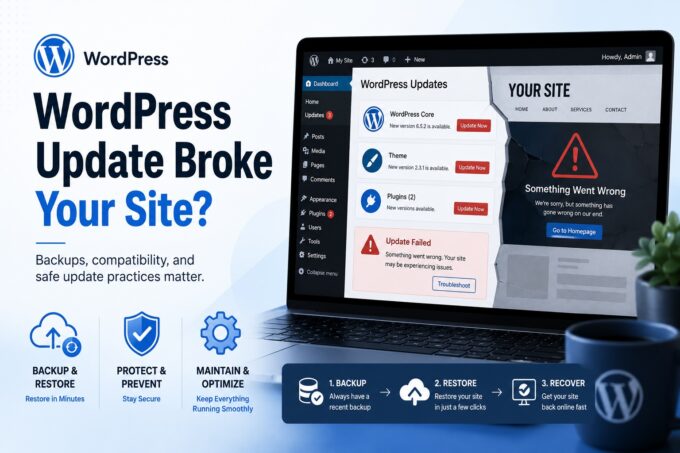
Clicking the Update button in WordPress looks simple enough.
You log into the dashboard, see a notification that WordPress, a plugin, or a theme has a new version available, and it feels natural to click the button. After all, updates are supposed to improve things, right?
Most of the time, they do. Updates can fix bugs, improve security, add features, and keep your website compatible with modern technology.
But sometimes, a routine WordPress update can cause unexpected problems: a broken layout, missing content, plugin errors, a checkout that stops working, contact forms that no longer send, or even the dreaded blank white screen.
The good news is that these problems are usually preventable. And even when something does go wrong, a calm, professional approach can often bring the website back without making the situation worse.
Why WordPress Updates Can Break a Website
A WordPress website is not just one piece of software. It is a system made of several parts working together.
There is the WordPress core, which is the foundation of the website. Then there is the theme, which controls the design, layout, and sometimes parts of the functionality. Finally, there are plugins, which add features such as contact forms, SEO tools, galleries, online stores, security tools, calendars, booking systems, popups, sliders, and more.
When you update one part of the system, it may affect how it communicates with the others.
For example, a plugin may require a newer version of WordPress. A theme may not yet be fully compatible with the latest WordPress release. A new plugin version may require a newer PHP version on the hosting server. Or an older piece of custom code may stop working after the update.
That is why clicking “update” without preparation can be risky, especially for business websites where downtime can mean missed leads, lost sales, frustrated customers, and unnecessary stress.
Backups Are Your Website’s Safety Net
Before making updates, the most important question is:
Do you have a recent working backup?
A reliable hosting provider should offer server-level backups. These backups are usually created automatically and stored outside of your actual WordPress installation. In many cases, they can be restored without extra charges, depending on your hosting plan.
Server-level backups are often the safest option because they may include the full website environment: website files, database, and sometimes even account-level data.
If an update breaks the site, a good backup can turn a major emergency into a simple rollback.
However, it is important not to assume backups are available just because you have hosting. Before updating WordPress, your theme, or plugins, check your hosting control panel or contact your hosting provider to confirm that a recent backup exists.
A backup from several months ago may not be enough. Ideally, you want a backup recent enough that restoring it would not cause major data loss.
Backup Plugins Can Help, But They Have Limits
WordPress backup plugins are another useful option. These plugins can create backups directly from the WordPress dashboard and may allow you to download a copy or send it to remote storage such as Google Drive, Dropbox, or Amazon S3.
This can be helpful, especially if your hosting provider does not offer strong backup tools.
However, backup plugins should be used carefully.
Many backup plugins store copies of the website on the same hosting account. If your hosting plan has limited storage, those backups can quickly take up a large amount of space. Once the server account runs out of space, the website may slow down, fail to update, stop saving changes, or even crash.
So while backup plugins can be valuable, they should be configured properly. Ideally, backups should be stored off-site, not only inside the same server account as the website.
What to Check Before Clicking Update
Before updating anything on your WordPress website, take a few minutes to prepare.
First, confirm that you have a recent backup. This is the most important step.
Second, identify the most important parts of your website that need to be tested after the update. For example, contact forms, checkout pages, booking forms, login pages, membership areas, search features, multilingual pages, and payment systems should all be checked carefully.
Third, read the update notes when possible. Most people skip them, but they often include important details about compatibility, security fixes, PHP requirements, and major changes.
A few minutes of preparation can save hours of repair work later.
What Should Be Updated First: WordPress, Theme, or Plugins?
There is no perfect update order that applies to every website, but a safe general approach is:
- Update plugins first
- Update the theme second
- Update WordPress core last
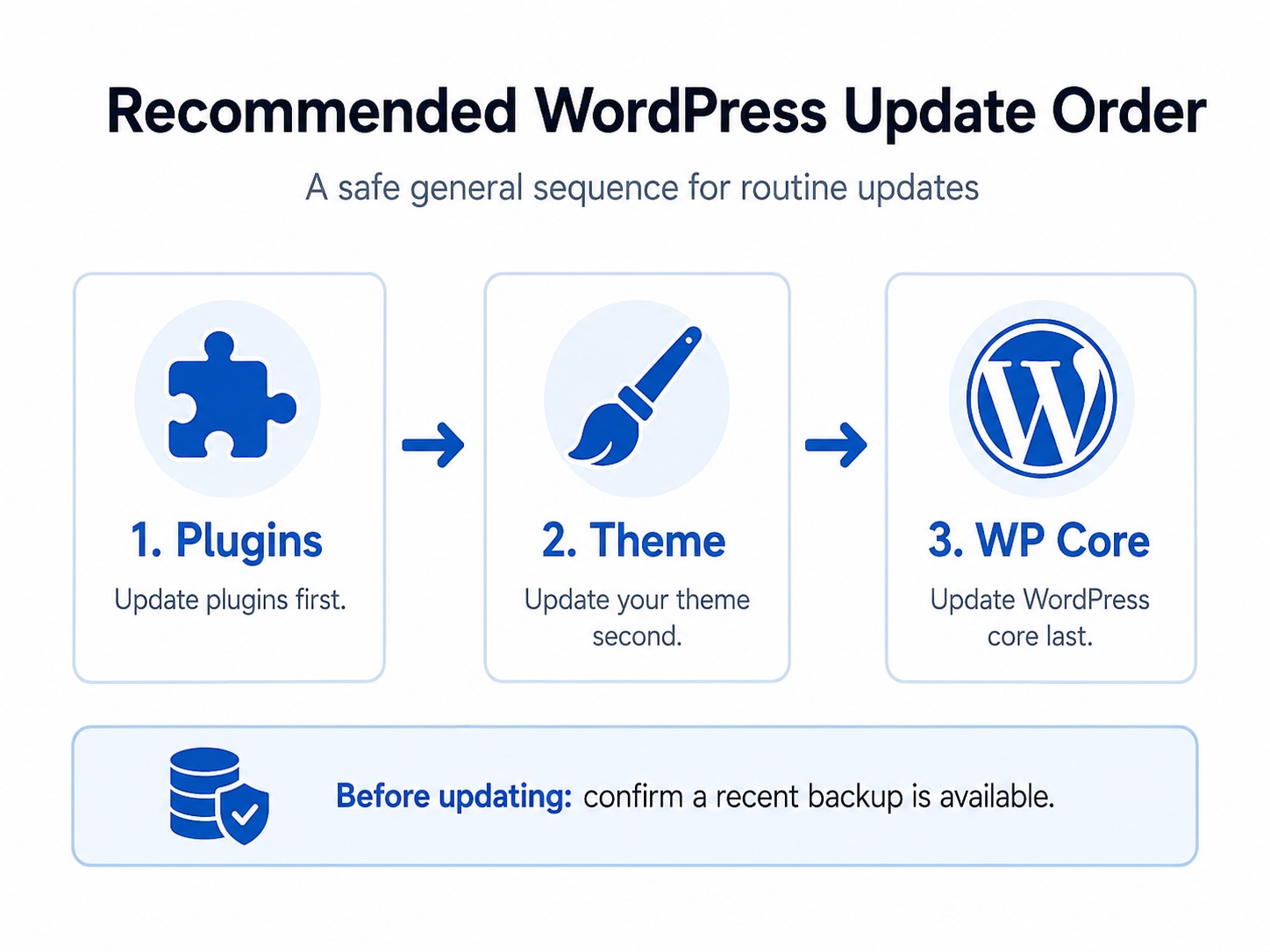
The reason is that plugin and theme developers often release compatibility updates before or around major WordPress releases. Updating plugins and themes first can help prepare the website for the newer WordPress core version.
However, the best order may vary depending on the website. Security updates may need to be handled immediately. WooCommerce websites, membership websites, multilingual websites, and websites with custom code may require extra caution.
For larger or more important websites, updates should ideally be tested in a staging environment before being applied to the live website.
PHP Version Compatibility Is Often Overlooked
One of the most common reasons a WordPress update breaks a website is PHP compatibility.
PHP is the server-side programming language that WordPress runs on. Your hosting account uses a specific PHP version, and your WordPress theme and plugins need to be compatible with that version.
For example, an older plugin may not work properly on a newer PHP version. At the same time, a newer plugin may require a PHP version that your hosting account is not currently using.
Update descriptions often mention PHP requirements, WordPress version requirements, and compatibility notes. Unfortunately, most website owners never read those notes. They simply see the update button and click it.
Before major updates, it is smart to check whether your hosting PHP version is compatible with your WordPress version, theme, and important plugins.
What If the Website Is Already Broken and There Is No Backup?
If your WordPress website is already broken and there is no recent backup available, do not panic. In many cases, the problem can still be diagnosed and repaired.
But this is also the point where it is very important not to keep clicking random buttons, deleting plugins, changing theme files, or trying fixes from unrelated online forums.
By default, most properly configured WordPress websites do not display technical error messages publicly. This is intentional. Showing errors to visitors can expose sensitive information about the website’s file structure, plugins, theme, or server configuration.
However, those hidden errors can usually be enabled for debugging by someone who understands WordPress development. A professional can turn on debugging safely, review the error logs, identify whether the issue is coming from WordPress core, a theme, a plugin, custom code, or the hosting PHP version, and then apply the correct fix.
This process may involve disabling a specific plugin, switching a theme temporarily, correcting a PHP error, restoring missing files, adjusting the PHP version, repairing the database, or manually replacing damaged WordPress files.
The key is knowing what to touch and what not to touch.
If you are not comfortable reading PHP errors, working with files through FTP or the hosting file manager, checking database tables, or reviewing server logs, it is best to stop and contact a professional. The original issue may be fixable, but random changes can make the repair more difficult and sometimes more expensive.
A broken website without a backup is not always a disaster. But it should be handled carefully, patiently, and professionally.
Website Maintenance Is More Than Clicking Buttons
Keeping a WordPress website updated is important. Updates help protect your site, improve performance, and keep your software compatible with modern web standards.
But safe website maintenance is more than clicking update buttons.
A professional maintenance process includes checking backups, reviewing update notes, confirming PHP compatibility, updating in the right order, testing important pages, checking forms, reviewing logs, and knowing how to recover if something goes wrong.
It is a lot like maintaining a car. Most people can add windshield washer fluid or check tire pressure, but when it comes to the engine, brakes, electrical systems, or diagnostics, trusting a qualified mechanic is usually a smart decision.
Your website works the same way.
The WordPress dashboard may look simple, but there is a lot happening behind the scenes. If your business depends on your website, it is worth having a professional maintain it properly.
With the right process, WordPress updates do not have to be scary. They can be handled safely, strategically, and with confidence.
FAQ
Why did my WordPress site break after an update?
A WordPress site can break after an update because the WordPress core, theme, plugins, custom code, and hosting environment all need to work together. If one plugin is not compatible with the newest WordPress version, or if the hosting PHP version does not meet the software requirements, the site may display errors, lose functionality, or stop loading properly.
Is it safe to update WordPress by myself?
It can be safe to update WordPress yourself if you have a recent backup, understand what is being updated, and know how to test the website afterward. For simple websites, updates may be straightforward. For business websites, WooCommerce stores, membership sites, multilingual websites, or websites with custom code, it is safer to have a professional handle the updates.
What should I do before updating WordPress?
Before updating WordPress, confirm that you have a recent backup of both the website files and the database. You should also check plugin and theme compatibility, review the update notes, confirm your PHP version is supported, and make a list of important pages or features to test after the update.
Should I update WordPress, plugins, or the theme first?
A common safe approach is to update plugins first, then the theme, and then WordPress core. This gives plugins and themes the chance to be compatible with the newer WordPress version before the core update is applied. However, the best order can vary depending on the website, especially if there are urgent security updates or complex functionality involved.
Can a broken WordPress site be fixed without a backup?
Yes, many broken WordPress websites can still be fixed without a backup, but it requires a careful diagnostic process. A professional can enable debugging, review error logs, identify whether the issue comes from a plugin, theme, PHP version, custom code, or database problem, and apply the right fix. If you do not know code, it is best not to keep making random changes because that can make the repair more difficult.
Why don’t I see the actual error message on my website?
Most WordPress websites are configured to hide technical errors from public visitors. This is a security best practice because visible errors can expose sensitive information about your website’s files, plugins, theme, or server setup. The errors are often still available in hidden logs or can be displayed temporarily by enabling WordPress debugging.
Can a backup plugin replace hosting backups?
A backup plugin can be helpful, but it should not always be your only backup strategy. Backup plugins may store large backup files on your hosting account, which can use up server space. Server-level backups from a reliable hosting provider are often easier to restore and may be more dependable in an emergency. The best setup often includes both server-level backups and properly configured off-site backups.
How often should I back up my WordPress website?
The right backup schedule depends on how often your website changes. A simple brochure website may only need occasional backups, while an active blog, online store, membership website, or lead-generation site should be backed up much more frequently. If your website receives orders, form submissions, or user activity every day, daily backups are usually a smart minimum.
Do WordPress updates affect SEO?
They can. A successful update may improve security, performance, and compatibility, which can support SEO. But a failed update can hurt SEO if it causes downtime, broken pages, layout problems, missing content, or crawl errors. That is why it is important to update carefully, test the website afterward, and fix issues quickly.
When should I hire a professional for WordPress maintenance?
You should consider hiring a professional if your website supports your business, generates leads, processes payments, uses custom code, or has important features that cannot afford to break. Professional WordPress maintenance helps keep the site updated, backed up, secure, and monitored so you can focus on running your business instead of troubleshooting technical problems.